Where is the add courses option?
In the admin on the side menu, you should find courses, you can either press courses and find add a new course button on the top right of the page or hover the courses item and find add new course in the sub-menu.
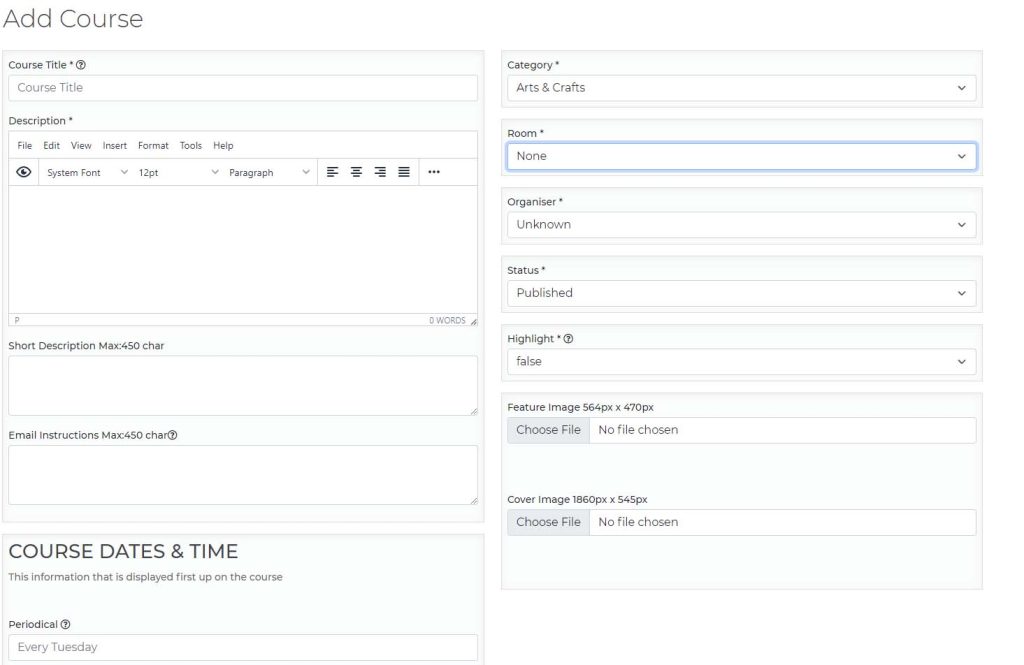
How to add a course
- Fill out all of the fields with an asterisk (*), NOTE: course’s name required to be unique.
- Hover any question-markm (?) icon to find out more information on the field.
- For tickets either fill out the fields with an asterisk (*) or tick the Tickets Not Apply option. The ticket Not Apply will skip adding tickets section but at version 1.0.5 it isn’t possible to add tickets in the future if you do tick this option.
- Press Update once it’s done.
How to edit a course
- Find the course you like to edit by either looking through the listing or using the search options at the top of the course listing.
- Press the edit link it should show up with a page that looks like the create page but has the course info already filled out in the fields.
- Make your changes and press update, it will update the content.